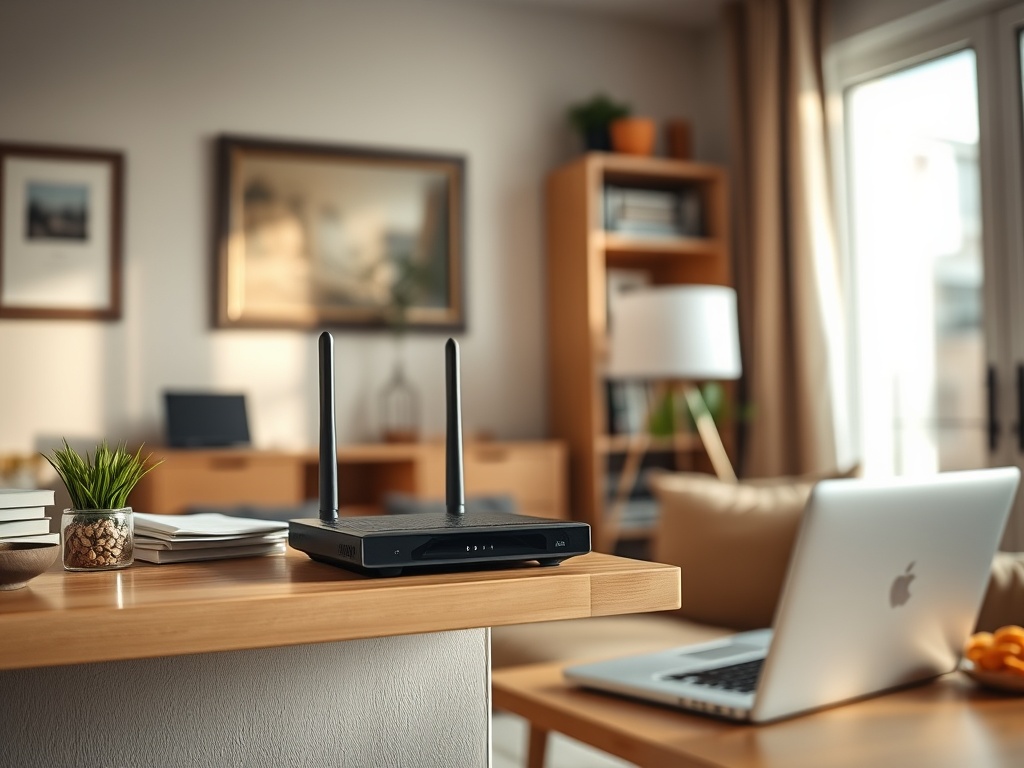
Home Wi-Fi works best when the router is placed well, secured properly, matched to your device needs, and not overloaded by avoidable interference. The fastest internet plan will still feel slow if the wireless signal is weak, the router is hidden in a bad spot, or too many devices compete for the same connection.
Home network basics in one view
- Place the router in a central, open location when possible.
- Use Ethernet for devices that need the most stable speed.
- Update the router and protect the network with strong security settings.
- Consider a mesh system or extender only after checking placement and interference.
- Official consumer guidance from the FCC, FTC, and CISA is a reliable starting point.
What Wi-Fi does inside your home
Wi-Fi is the wireless link between your devices and your router. Your internet service brings data to the home. Your router shares that connection across phones, laptops, TVs, consoles, printers, smart speakers, cameras, and appliances. When people say “the internet is slow,” the problem could be the internet service, the router, the Wi-Fi signal, the device, the website, or the app.
That distinction matters. Buying a faster plan may not fix a dead bedroom signal. Replacing a laptop may not fix an overloaded router. Upgrading the router may not fix a service outage. A basic home network check saves money because it tells you where the bottleneck likely sits.
Place the router where the signal can breathe
The FCC recommends a central location for better coverage and notes that Ethernet can provide the highest speeds for a device connected directly to the router. In practice, that means you should avoid burying the router in a cabinet, behind a TV, on the floor, or next to thick walls and metal objects.
A good router position is elevated, open, and close to the center of the area where people use devices. If the internet line enters the home in a corner, you may need a longer Ethernet cable, a mesh system, or professional wiring to move the main access point. A small relocation can sometimes outperform an expensive upgrade.
Understand speed, coverage, and congestion
Speed is how much data can move. Coverage is how far the signal reaches. Congestion is what happens when too many devices or nearby networks compete. A living room can have high speed and a back bedroom can have poor coverage. A small apartment can have strong signal but congestion from neighboring networks.
Use a speed test carefully. Test near the router first, then test in the problem room. If the near-router result is good and the far-room result is poor, you likely have a coverage issue. If both are poor, check the internet service, router, modem, and wired speed. If speed changes only at busy times, congestion or service capacity may be involved.
Secure the network before optimizing everything else
A home network can contain personal files, work logins, cameras, health devices, and payment information. The FTC recommends changing default router credentials, using strong encryption, keeping firmware updated, and setting up a guest network where appropriate. CISA also emphasizes router security as a basic privacy and cybersecurity step.
Security improvements can feel separate from speed, but they affect trust. Unknown devices on the network can consume bandwidth and create risk. Weak passwords make it easier for others to connect. Old firmware can leave known problems unpatched. Review password security basics if your router password is reused or shared too casually.
Use the right connection for the job
Not every device needs the same connection. A smart speaker can use Wi-Fi without much concern. A work laptop on video calls needs stable signal. A gaming console, desktop computer, or streaming box may benefit from Ethernet. A printer may work better on a steady network than on a weak far-room signal.
| Device or task | Preferred setup | Why |
|---|---|---|
| Video calls | Strong Wi-Fi or Ethernet | Reduces freezing and audio drops |
| Gaming or large downloads | Ethernet when possible | Lowers latency and improves stability |
| Smart home devices | Guest or separated network where supported | Limits exposure and keeps organization cleaner |
| Phones and tablets | Wi-Fi with good coverage | Saves mobile data and battery |
If your devices are old, also review battery health before you buy or upgrade because poor battery life and weak Wi-Fi often get blamed on each other during daily use.
When mesh, extenders, or Ethernet help
A mesh system uses multiple nodes to spread Wi-Fi through the home. An extender repeats a signal, often at a lower cost but with possible performance trade-offs. Ethernet is a wired connection that can give stable performance to a single device or feed a remote access point.
Choose based on the problem. For one dead corner, an extender may help. For a larger home with multiple weak areas, mesh may be cleaner. For a home office, Ethernet may be the most dependable answer. Do not add equipment randomly. Test first, then solve the specific weak spot.
Beginner troubleshooting checklist
1. Restart the modem and router, then wait until they fully reconnect.
2. Move closer to the router and compare performance.
3. Test one device and then another to see if the issue follows the device.
4. Disconnect unused streaming or download-heavy devices.
5. Check router firmware and security settings.
6. Try Ethernet for a high-priority device.
7. Contact the internet provider if wired speed is far below the plan.
Keep a simple network note
Write down the internet provider, router model, Wi-Fi network name, admin page location, and the date firmware was last checked. Store the note somewhere safe, not taped to the router with the password exposed. This makes troubleshooting easier when a device fails, a family member changes settings, or support asks what equipment you use. Also note where the router and modem are plugged in, which devices use Ethernet, and which rooms have weak signal. That simple map helps you decide whether to move equipment, add a mesh node, or call the provider.
What to learn after your signal improves
Once Wi-Fi is stable, daily computer tasks become easier: cloud documents sync faster, screen recordings upload reliably, updates complete, and calls feel less fragile. For the next layer, learn who helps shape internet rules and standards so terms like DNS, standards, and network security become less mysterious. A good home network starts with placement and security, then grows into better habits.